Platform · Mac
Contaxo for Mac
Short answer
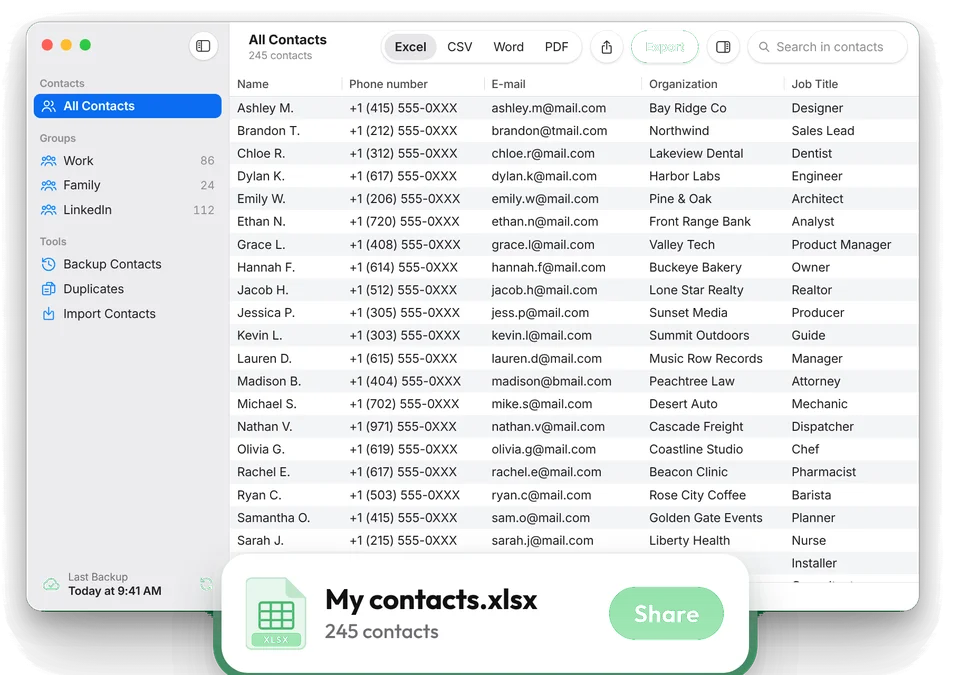
Contaxo for Mac opens your contacts as a full-size table. Export them to Excel, CSV, Word, PDF or vCard, edit a cell or leave someone out for one file without touching your address book, print the list, back up and restore, import contacts from files and merge duplicates. It needs macOS 14 or later, and Pro bought with your Apple Account also works on your iPhone and iPad.

Export your Mac contacts
Open Contaxo and allow access
Contaxo shows every contact from the Contacts app on your Mac, whichever account it is in.
Pick who to export
Choose All Contacts or a group in the sidebar. Filter to people with a phone number, an email or a company if you need part of the list.
Choose the format and columns
Pick Excel, CSV, Word or PDF in the toolbar. The preview shows the real table or every page, and you choose which columns to keep.
Adjust the table for this file (optional)
Edit a cell, add a row or leave a row out. The change goes into this file only; your address book stays as it is.
Export, print or drag
Click Export and save the file, print it, or drag it straight to your desktop, a Finder window or an email.
What Contaxo does on a Mac
- Export to Excel, CSV, Word, PDF and vCard from a full-size table, with groups in the sidebar and filters.
- Edit for one file: fix a cell, add a row or leave one out without changing your contacts.
- Print a contact list, or drag the exported file to the desktop, Finder or an email.
- Share contacts as one vCard by Mail, Messages, AirDrop or any app.
- Back up and restore: one-click vCard backups in your iCloud Drive (or on the Mac), reminders, and the Back Up Contacts action in Shortcuts. Restores add only missing contacts.
- Import vCard, CSV and Excel files from the File menu, by drag and drop, or with Open With in Finder.
- Duplicates: find by name, phone or email, delete or merge, with undo.
- Made for Mac: sidebar, toolbar, menu bar commands with keyboard shortcuts, and a separate Settings window.
Free and Pro on the Mac
Free: preview every format, edit the table, export and share smaller lists, back up, restore, share backup files, import small files, and find and delete duplicates. Pro: export and share your whole list, export or print a table you’ve edited, import files of any size and merge duplicates. See Pricing.
The built-in way
The Contacts app on a Mac can export selected contacts as a vCard (File › Export › Export vCard) and print them (File › Print). It can’t save an Excel, CSV or Word file, choose columns, or keep a backup history.
Frequently asked questions
How do I export contacts from a Mac to Excel?
The Contacts app on a Mac exports only vCard files. With Contaxo, choose Excel in the toolbar, check the preview and click Export to get a real .xlsx file.
Can I print my Mac contacts as a list?
Yes. Choose PDF or Word, keep the columns you want and print from Contaxo.
Do backups from my iPhone show up on the Mac?
Yes. With iCloud Drive on, backups you made on your iPhone or iPad appear in the same list on your Mac, and you can restore them there.
How do I import a file on the Mac?
Open it from the File menu, drop it on the Contaxo window or its Dock icon, or choose Contaxo under Open With in Finder. Columns are matched for you and you tick who to add.
Do I have to buy Pro again on the Mac?
No. Pro is linked to your Apple Account, so it works on your iPhone, iPad and Mac.
Can I move contacts to a new phone from the Mac?
Transfer to New Phone is on iPhone, iPad and Android. From a Mac, export a vCard or share a backup and open it on the phone.
Related
- Export formatHow to export your contacts to ExcelTurn your iPhone, iPad or Android contacts into a real Excel (.xlsx) spreadsheet in a few taps, with a preview, column picker and filters. No computer needed.
- Export formatHow to export and print your contacts as a PDFMake a printable PDF contact list from your iPhone, iPad or Android phone. Choose the columns, preview every page and print or share it.
- FeatureHow to back up and restore your contactsBack up every contact on your iPhone, iPad or Android phone in one tap, get reminders when the backup is out of date, and restore only what is missing.
- PlatformContaxo for iPhone, iPad and MacExport iPhone contacts to Excel, PDF, CSV, Word and vCard, back them up to iCloud Drive, move them to a new phone with a QR code, import from files and merge duplicates.
Your contacts, in any file you need.
Free to download for iPhone, iPad, Mac and Android. No account, and we never see your contacts.