Export format · iPhone, iPad, Mac & Android
How to export your contacts to Word
Short answer
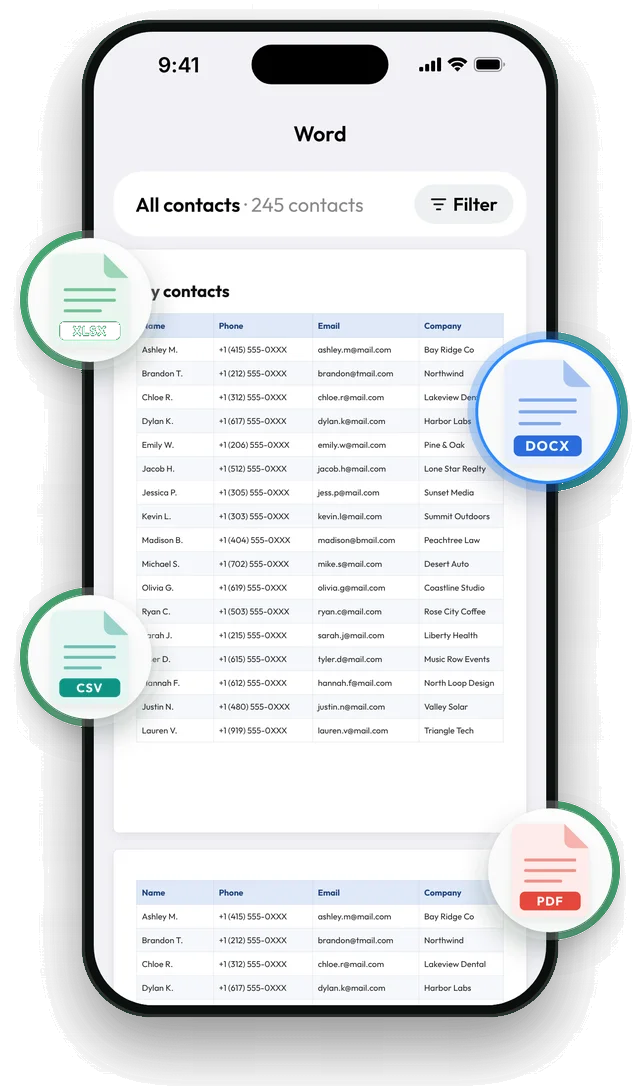
In Contaxo, tap Word to see your contacts as a table on real pages, choose the columns, then tap Export. You get a .docx file you can edit in Microsoft Word, Pages or Google Docs, for example to add a title or a note before printing.


Step by step with Contaxo
Tap Word
On the Home tab of Contaxo, tap Word. Every page of the document appears in the preview.
Choose the columns
Keep only the fields you need. The preview updates as you change them.
Filter the list
Pick one group or only contacts with a phone, an email or a company.
Export
Tap Export and save the .docx file, or send it to your computer to edit.
Good uses for a Word contact list
- A club, school or church directory you can add a heading and notes to.
- A staff phone list to pin on a wall.
- A list to send to someone who will edit it before printing.
Phones and iCloud cannot export contacts to Word. Without an app you would export a CSV, open it in Excel and copy the table into Word.
Microsoft Word is a trademark of Microsoft Corporation. Contaxo is not affiliated with Microsoft.
Frequently asked questions
What does the Word file contain?
A title and one editable table with the columns you chose, laid out to print well.
Can I edit it in Google Docs or Pages?
Yes. It is a standard .docx file that opens in Microsoft Word, Apple Pages, Google Docs and LibreOffice.
Word or PDF?
Choose Word if you want to change the list. Choose PDF if you just want to print or share it as it is.
Related
- Export formatHow to export and print your contacts as a PDFMake a printable PDF contact list from your iPhone, iPad or Android phone. Choose the columns, preview every page and print or share it.
- Export formatHow to export your contacts to ExcelTurn your iPhone, iPad or Android contacts into a real Excel (.xlsx) spreadsheet in a few taps, with a preview, column picker and filters. No computer needed.
Your contacts, in any file you need.
Free to download for iPhone, iPad, Mac and Android. No account, and we never see your contacts.