Feature · iPhone, iPad, Mac & Android
How to import contacts from Excel, CSV or vCard
Short answer
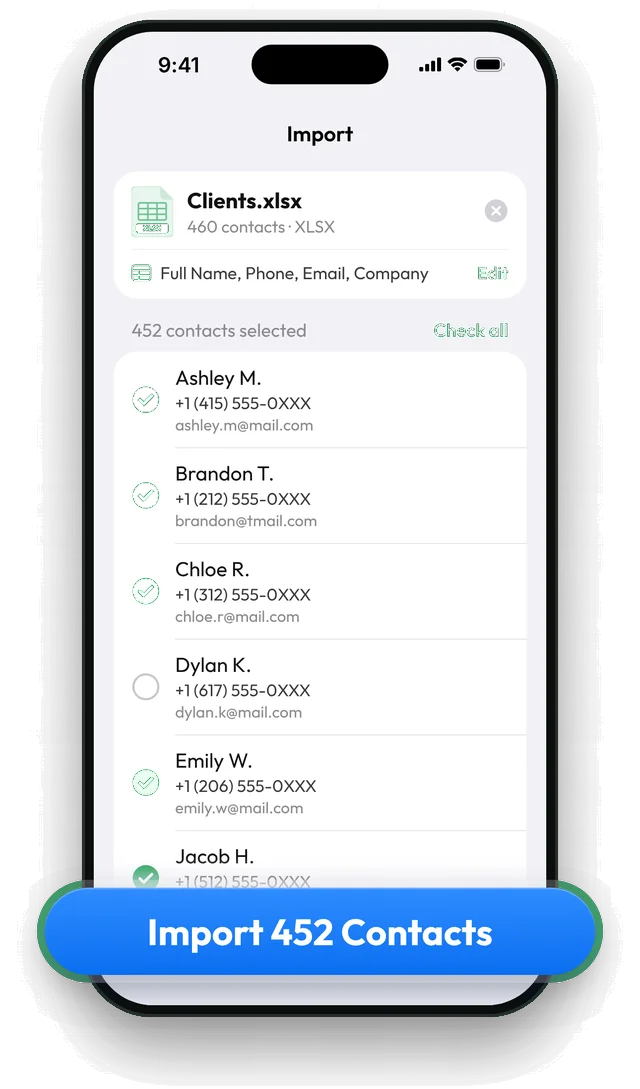
Open Contaxo, tap Import Contacts and choose an Excel (.xlsx, .xls), CSV or vCard (.vcf) file. Contaxo matches the columns (name, phone, email, company and more), shows every contact with a tick, and adds only the ones you keep ticked to your address book.


Step by step with Contaxo
Tap Import Contacts and choose the file
In Contaxo, tap Import Contacts, then Choose a file. On iPad you can also drag a file onto the Import screen. On Android you can also open a .vcf file directly with Contaxo.
Check the columns
For Excel and CSV files, Contaxo reads the header row and matches each column to a field. Column names from Google, Outlook and iCloud exports and in 30 languages are recognised. Tap Edit to fix a column.
Pick the contacts
Every contact is ticked. Untick the ones you don't want, or search by name, phone or email.
Save
Tap Save to add the ticked contacts to your address book.
Getting the file onto your phone
- From a computer: email it to yourself, or put it in iCloud Drive, Google Drive or OneDrive.
- From Google Contacts: on contacts.google.com choose Export › vCard and open the file on your phone.
- From an old Android phone: export a .vcf from the Contacts app and send it to yourself.
If a file won’t import
- Save it as .xlsx or .csv. Files from Apple Numbers, OpenDocument or password-protected workbooks need to be saved in one of these formats first.
- Files from old phones and other languages are fine. Contaxo reads vCards from older Android and Samsung phones and contact files with accents and non-Latin letters. If one card in a vCard is damaged, the rest still import.
- Columns in the wrong place? Tap Edit on the file card and choose what each column contains.
- Can’t find the file? Make sure it is in Files (iPhone) or your Downloads or Drive (Android). On a Mac, drop it on the Contaxo window.
The built-in way (without an app)
- iPhone: a vCard opened from Mail, Messages or Files shows Add All Contacts. iPhone cannot import CSV or Excel files.
- Android: Google Contacts imports .vcf files (Fix & manage › Import from file). CSV files can be imported on contacts.google.com from a computer.
Contaxo adds Excel and CSV import on the phone itself, column matching and the choice of who to add.
Frequently asked questions
Which file types can I import?
vCard (.vcf), CSV and tab-separated text, and Excel workbooks (.xlsx, .xlsm, .xls), including the ".xls" files that many web tools export. Apple Numbers and OpenDocument files must be exported as Excel or CSV first.
Which fields are imported?
Full name or first and last name, phone numbers, emails, company, job title, address and website. Several phone or email columns are fine.
My file has no header row
Turn off First row has column names and choose a field for each column yourself.
Will importing create duplicates?
Import adds the contacts you tick and does not check them against your address book. If some may already exist, run Duplicates afterwards to merge them.
Is importing free?
Files with up to 5 contacts are free. Larger files need Pro. Contaxo tells you before you tap Save.
Related
- Export formatHow to export your contacts to ExcelTurn your iPhone, iPad or Android contacts into a real Excel (.xlsx) spreadsheet in a few taps, with a preview, column picker and filters. No computer needed.
- FeatureHow to find and merge duplicate contactsFind duplicate contacts by name, phone number or email, then delete the copies or merge them into one contact, with a restore point and undo.
- FeatureHow to move your contacts to a new phoneMove every contact from your old phone to a new one with a QR code: iPhone to Android, Android to iPhone or same to same. End-to-end encrypted, no accounts, no duplicates.
Your contacts, in any file you need.
Free to download for iPhone, iPad, Mac and Android. No account, and we never see your contacts.