Export format · iPhone, iPad, Mac & Android
How to export your contacts to Excel
Short answer
Your phone's Contacts app can only export a vCard (.vcf) file, which Excel does not open as a table. With Contaxo, tap Excel, check the preview, choose the columns and tap Export. You get a real .xlsx file with one row per contact, ready for Excel, Numbers or Google Sheets.


Step by step with Contaxo
Open Contaxo and allow access
Tap Allow so Contaxo can read your address book. Exporting happens entirely on your phone; nothing is sent to us.
Tap Excel
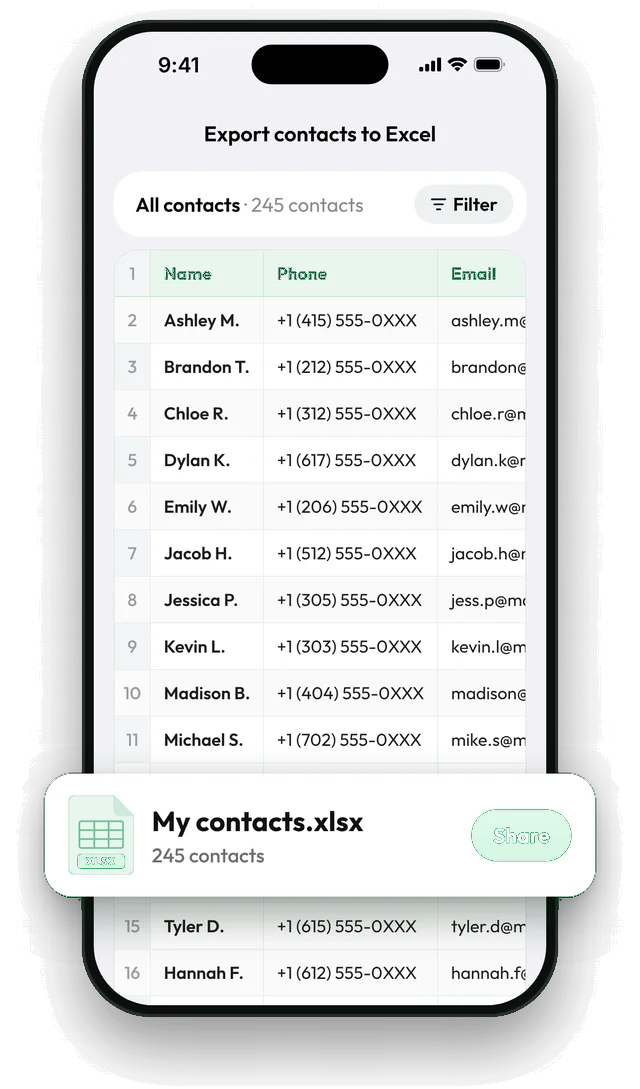
On the Home tab, tap Excel (on iPad, open All Contacts in the sidebar). The real spreadsheet appears right away, with one row per contact.
Choose the columns
Tap the columns button to show or hide fields such as name, phone, email, company, job title, address and birthday. Contaxo remembers your choice for next time.
Filter the list (optional)
Tap the filter at the bottom to export one group, or only the contacts that have a phone number, an email or a company.
Export and save
Tap Export. Save the .xlsx file to Files or Google Drive, or send it by Mail, Messages, WhatsApp or any other app.
What you get in the Excel file
- One row per contact and one column per field you keep: name, phone, email, company, job title, address, birthday, website and more.
- People with several phone numbers or emails stay on a single row.
- A standard .xlsx file that opens in Microsoft Excel, Apple Numbers, Google Sheets and LibreOffice.
The built-in way (without an app)
Neither iPhone nor Android can save contacts as an Excel file on their own. The usual workaround goes through Google on a computer.
On iPhone (iOS 17 or later):
- Open Contacts, tap Lists, then touch and hold All Contacts (or All iCloud).
- Tap Export, choose the fields and save the .vcf file to Files.
- On a computer, open contacts.google.com, choose Import and pick the .vcf file.
- Choose Export, then Google CSV or Outlook CSV, and open the file in Excel.
On Android: the Contacts app exports only a .vcf file. If your contacts sync with Google, open contacts.google.com on a computer, choose Export and pick Google CSV.
| Feature | Built-in route | Contaxo |
|---|---|---|
| File you get | CSV (after converting) | Real Excel .xlsx (or CSV, PDF, Word) |
| Computer needed | Yes | No |
| Google account needed | Yes | No |
| Your contacts uploaded | Yes, to Google | No, stays on your phone |
| Choose columns before export | No | Yes |
| Export one group | Partly | Yes, plus phone, email and company filters |
Tips
- Need a list to print rather than a spreadsheet? Export to PDF gives you pages with a header row on each page.
- Importing into a CRM or mailing tool? Most of them prefer CSV.
- Planning to edit the spreadsheet and bring the contacts back? Contaxo can import contacts from Excel too.
Frequently asked questions
Can I export iPhone contacts to Excel for free?
Yes. The free version of Contaxo exports your first 100 contacts to Excel, and the preview always shows every contact. If you filter the list to 100 contacts or fewer, the whole filtered list is exported. Pro exports any number of contacts.
Do I need a computer or iTunes?
No. Contaxo creates the Excel file on your iPhone, iPad or Android phone. You can open it there or send it to your computer.
What happens to contacts with several phone numbers or emails?
They stay on one row, with all of their numbers and emails included.
Will the file open in Google Sheets or Numbers?
Yes. It is a standard .xlsx file, so it opens in Microsoft Excel, Apple Numbers, Google Sheets and LibreOffice.
Can I export just one group, like my clients?
Yes. Use the filter to pick a contact group, or keep only contacts with a phone number, an email or a company. Filters only change what goes into the file, never your contacts.
Related
- Export formatHow to export your contacts to a CSV fileSave your iPhone, iPad or Android contacts as a UTF-8 CSV file for Google Sheets, CRMs, mailing tools and mail merge. Pick columns and filter first.
- Export formatHow to export and print your contacts as a PDFMake a printable PDF contact list from your iPhone, iPad or Android phone. Choose the columns, preview every page and print or share it.
- FeatureHow to back up and restore your contactsBack up every contact on your iPhone, iPad or Android phone in one tap, get reminders when the backup is out of date, and restore only what is missing.
- FeatureHow to import contacts from Excel, CSV or vCardAdd contacts to your iPhone, iPad or Android phone from an Excel, CSV or vCard file. Columns are matched for you and you choose who to add.
Your contacts, in any file you need.
Free to download for iPhone, iPad, Mac and Android. No account, and we never see your contacts.