Guide · iPhone, iPad, Mac & Android
How to get your phone contacts into a CRM or Mailchimp
Short answer
Export the contacts as a spreadsheet, then use the CRM's import tool. With Contaxo, tap CSV or Excel, keep the columns the tool expects (first name, last name, email, phone, company), filter to contacts with an email for mailing tools, and export. Upload the file in HubSpot, Mailchimp or your CRM and match the columns.


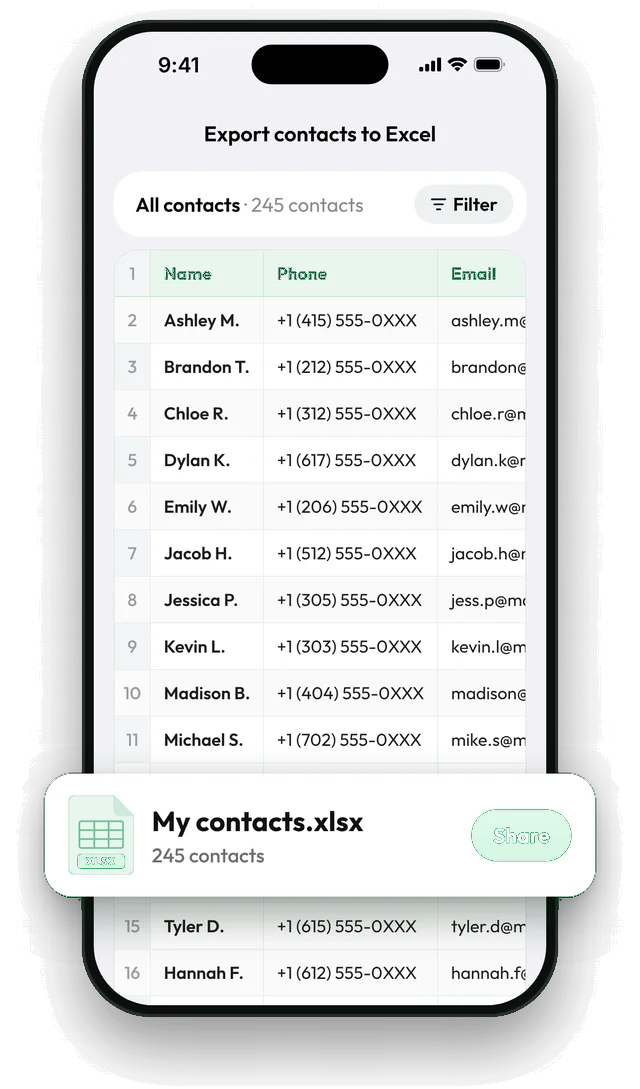
Export a CRM-ready file with Contaxo
Choose CSV or Excel
On the Home tab of Contaxo, tap CSV (works everywhere) or Excel (HubSpot and many CRMs accept .xlsx too).
Keep the right columns
Keep first name, last name, email, phone and company. Remove fields the tool doesn't need, such as notes or birthdays.
Filter
For Mailchimp or Brevo, keep only contacts that have an email. For a client list, filter to one group, such as Clients.
Export and import
Tap Export, send the file to your computer, then use the import tool in your CRM and match each column to a field.
Which file to use
| Tool | File | Tip |
|---|---|---|
| HubSpot | CSV or Excel | Email is the key that prevents duplicates. |
| Mailchimp, Brevo | CSV | Only contacts with an email; check consent. |
| Salesforce, Pipedrive, Zoho | CSV | Map name, email, phone and company in the import wizard. |
| Google Sheets to share with a team | Excel or CSV | See Export contacts to Excel. |
Before you import
- Remove personal contacts. Filter to a group such as Clients, or untick people in the preview.
- Check the encoding. If names with accents look wrong after import, see How to fix broken characters in a contacts CSV.
- Try a small file first. Import 10 contacts, check the result, then import the rest.
The built-in way (without an app)
Phones export contacts only as vCard, which most mailing tools can’t import. If your contacts are in a Google account, you can export them on a computer from contacts.google.com › Export › Google CSV and clean up the columns in Excel. See How to export Google Contacts to Excel.
Frequently asked questions
What does HubSpot need?
A .csv, .xlsx or .xls file with one sheet and a header row. Each contact needs at least a first name, last name or email, and HubSpot uses the email address to avoid creating duplicates. Files with non-English letters should be UTF-8.
What does Mailchimp need?
An email address for every contact, one per row. Contacts without an email can't be added to an audience, so filter them out before exporting.
How should phone numbers look?
With the country code, such as +1 415 555 0100. CRMs can then format and dial them correctly. Contacts saved with a country code on your phone are exported that way.
Can I import people who never agreed to get emails?
Mailing tools require permission to email the people on your list. Import only contacts who opted in, or use the file in a CRM without adding them to email campaigns.
A person has two emails. What happens?
Contaxo keeps all of a contact's emails on one row. Map the main one to the CRM's Email field; HubSpot, for example, has a separate field for additional emails.
Related
- Export formatHow to export your contacts to a CSV fileSave your iPhone, iPad or Android contacts as a UTF-8 CSV file for Google Sheets, CRMs, mailing tools and mail merge. Pick columns and filter first.
- Export formatHow to export your contacts to ExcelTurn your iPhone, iPad or Android contacts into a real Excel (.xlsx) spreadsheet in a few taps, with a preview, column picker and filters. No computer needed.
- GuideHow to fix broken characters in a contacts CSV fileNames with accents, Turkish, Arabic, Chinese or Cyrillic letters turn into é, ı or ??? when a contacts CSV is opened in Excel or imported. Why it happens and how to fix it.
- GuideHow to export Google Contacts to ExcelExport your Google or Gmail contacts to Excel: as a Google CSV from contacts.google.com on a computer, or as a ready .xlsx file from your Android phone or iPhone with Contaxo.
Your contacts, in any file you need.
Free to download for iPhone, iPad, Mac and Android. No account, and we never see your contacts.