Guide · iPhone, iPad, Mac & Android
How to fix broken characters in a contacts CSV file
Short answer
Letters like é or ı mean a UTF-8 file was opened with the wrong encoding; the data is fine. In Excel, don't double-click the file: use Data › From Text/CSV and choose 65001: Unicode (UTF-8). ??? means the letters were lost when the file was saved; go back to the original file. When you save from Excel, choose CSV UTF-8, or use .xlsx, which keeps every alphabet.


Open a UTF-8 contacts CSV in Excel correctly
Start from an empty workbook
Open Excel with a blank workbook instead of double-clicking the CSV.
Use From Text/CSV
Go to Data › Get Data › From File › From Text/CSV (or Data › From Text/CSV) and choose the file.
Set the file origin
In the preview, set File Origin to 65001: Unicode (UTF-8) and Delimiter to Comma. The names in the preview should now look right.
Load
Click Load. To keep phone numbers exactly as written, click Transform Data first and set the phone columns to Text.
Which problem do you have?
| What you see | What it means | Fix |
|---|---|---|
José, Çağrı, Иван |
A UTF-8 file read with the wrong encoding. The data is fine. | Open with From Text/CSV and UTF-8 |
Jos?, ???, empty boxes |
The letters were removed when the file was saved. | Export again from the original and save as CSV UTF-8 |
| All data in column A | Your Excel uses semicolons as the list separator. | From Text/CSV, delimiter Comma |
+90 532… became 9.05E+11, leading 0 gone |
Excel turned phone numbers into numbers. | Set phone columns to Text when importing |
Saving a CSV from Excel without breaking it
When you choose File › Save As, pick CSV UTF-8 (Comma delimited) (*.csv). The plain CSV (Comma delimited) option saves in an older encoding and can turn non-English letters into question marks. If the file is going to a phone or another person, saving as Excel Workbook (.xlsx) is the safest choice.
Importing into Google Contacts or a CRM
Google Contacts, Outlook and most CRMs expect UTF-8. If names arrive broken, the CSV was saved in another encoding: fix it in Excel as above, save as CSV UTF-8, delete the broken contacts and import again.
The easy way from your phone
If the contacts are on your phone, export them with Contaxo to Excel (.xlsx): every alphabet opens correctly in Excel, Numbers and Google Sheets. For CRMs and mailing tools, Contaxo’s CSV export is UTF-8 with a header row; open it in Excel with From Text/CSV as above.
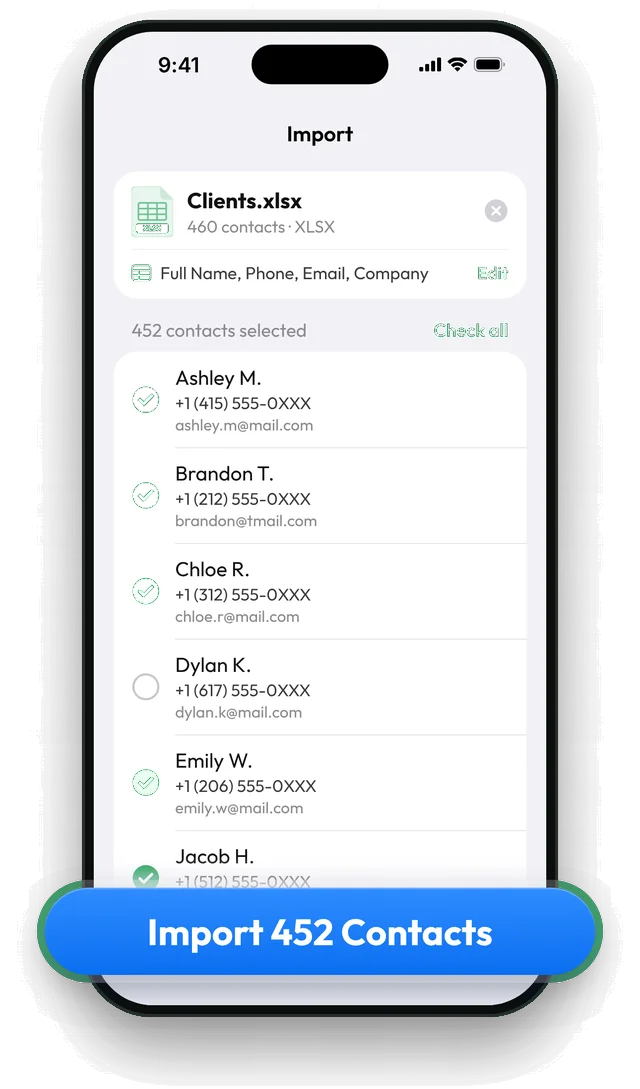
Importing in the other direction, Contaxo’s import reads files with accents and non-Latin letters and shows every contact before anything is saved.
Frequently asked questions
Why does Excel break the characters?
Contact exports from Google, iCloud and most apps are UTF-8. When you double-click a CSV, Excel often reads it with your computer's older regional encoding instead, so every letter outside basic English is shown as two or three wrong characters.
Google Sheets and Numbers show the file correctly. Why?
They read CSV files as UTF-8 by default. Opening the file there, then downloading it as .xlsx, is another easy fix.
The names show ??? or empty boxes. Can I get them back?
Not from that file. Question marks mean the file was saved in an encoding that has no room for those letters, so they were replaced. Export the contacts again from the original source and save as CSV UTF-8 or .xlsx.
Does this happen with Excel files exported by Contaxo?
No. An .xlsx file stores every alphabet as it is, so names in Turkish, Arabic, Chinese, Cyrillic or any other script open correctly in Excel without import settings.
Contacts imported to my phone have broken names
The file was probably saved in an old encoding. Open it in Excel as above, save it as CSV UTF-8 or .xlsx, and import it again. Contaxo shows every contact before you save, so you can check the names first.
Related
- Export formatHow to export your contacts to a CSV fileSave your iPhone, iPad or Android contacts as a UTF-8 CSV file for Google Sheets, CRMs, mailing tools and mail merge. Pick columns and filter first.
- Export formatHow to export your contacts to ExcelTurn your iPhone, iPad or Android contacts into a real Excel (.xlsx) spreadsheet in a few taps, with a preview, column picker and filters. No computer needed.
- FeatureHow to import contacts from Excel, CSV or vCardAdd contacts to your iPhone, iPad or Android phone from an Excel, CSV or vCard file. Columns are matched for you and you choose who to add.
- GuideHow to export Google Contacts to ExcelExport your Google or Gmail contacts to Excel: as a Google CSV from contacts.google.com on a computer, or as a ready .xlsx file from your Android phone or iPhone with Contaxo.
Your contacts, in any file you need.
Free to download for iPhone, iPad, Mac and Android. No account, and we never see your contacts.