Guide · iPhone, iPad, Mac & Android
How to export Google Contacts to Excel
Short answer
On a computer, open contacts.google.com, click Export, choose Google CSV and open the file in Excel. On a phone, the Google Contacts app can only export a vCard, which Excel can't read as a table; with Contaxo, tap Excel, choose the columns and get a real .xlsx file of the contacts on your phone, Google account included.


On a computer, with Google CSV
Open Google Contacts
Go to contacts.google.com and sign in. To export only some people, tick them or open a label first.
Click Export
Click Export (the arrow icon at the top of the list, or in the menu on the left).
Choose Google CSV
Pick Google CSV and click Export. A file called contacts.csv is downloaded.
Open it in Excel
Open the file in Excel. If accents or non-Latin letters look wrong, import it with Data › From Text/CSV and choose 65001: Unicode (UTF-8).
On your phone, with Contaxo
- Make sure your Google account is added to the phone and its contacts are synced. On Android this is usually already the case; on iPhone, add it in Settings › Apps › Contacts › Contacts Accounts.
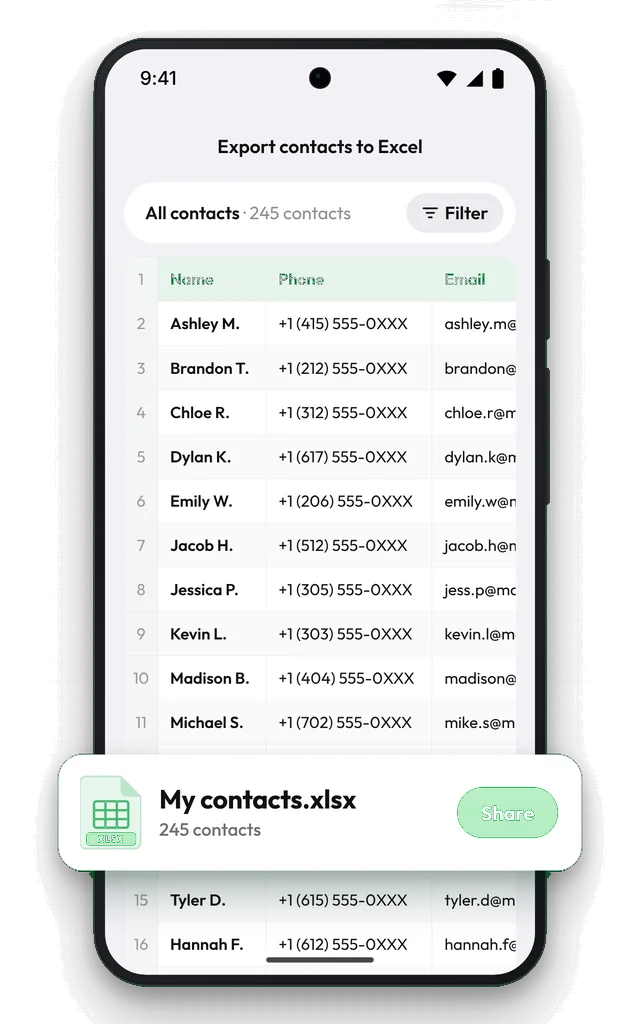
- Open Contaxo and tap Excel. The preview shows every contact as a row.
- Choose the columns, and filter if you only want contacts with an email or phone number.
- Tap Export and open the .xlsx file, or send it to your computer.
The file opens in Excel, Numbers, Google Sheets and LibreOffice, with each contact on one row and every number and email included. The free version exports 100 contacts; Pro exports any number.
Which way should I use?
| You want | Use |
|---|---|
| A quick file on a computer, for free | Google CSV from contacts.google.com |
| Only the columns you need, without cleaning up | Contaxo on your phone |
| Contacts that aren’t in your Google account too | Contaxo, which exports everything the phone shows |
| A file to move contacts to another phone | A vCard instead of Excel |
Opening the CSV in Excel
- Letters look wrong: see How to fix broken characters in a contacts CSV.
- Everything is in one column: your Excel expects semicolons. Use Data › From Text/CSV and set the delimiter to Comma.
- Phone numbers lost their leading 0 or +: Excel treats them as numbers. Import with Data › From Text/CSV, choose Transform Data and set the phone columns to Text.
Frequently asked questions
Google CSV or Outlook CSV?
Google CSV keeps the most detail and is the one to use for Excel, Google Sheets or a backup. Choose Outlook CSV only when you are moving the contacts into Outlook.
Why does the file have so many columns?
Google CSV has a column for every possible field, and each phone number, email and address is split into separate label and value columns. Delete the columns you don't need in Excel, or use Contaxo, where you choose the columns before exporting.
Can I export Google Contacts to Excel on my phone?
Not with Google's app alone; it only exports a vCard file. Contaxo creates the .xlsx file on the phone itself, from every contact the phone shows.
Are "Other contacts" included?
No. The people Gmail saves automatically under Other contacts are not in your main list. Add the ones you need to your contacts first.
Related
- Export formatHow to export your contacts to ExcelTurn your iPhone, iPad or Android contacts into a real Excel (.xlsx) spreadsheet in a few taps, with a preview, column picker and filters. No computer needed.
- Export formatHow to export your contacts to a CSV fileSave your iPhone, iPad or Android contacts as a UTF-8 CSV file for Google Sheets, CRMs, mailing tools and mail merge. Pick columns and filter first.
- GuideHow to fix broken characters in a contacts CSV fileNames with accents, Turkish, Arabic, Chinese or Cyrillic letters turn into é, ı or ??? when a contacts CSV is opened in Excel or imported. Why it happens and how to fix it.
- PlatformContaxo for AndroidExport Android contacts to Excel, PDF, CSV, Word and vCard, back them up with a copy to Google Drive, move them to a new phone with a QR code and merge duplicates.
Your contacts, in any file you need.
Free to download for iPhone, iPad, Mac and Android. No account, and we never see your contacts.