Guide · iPhone, iPad & Mac
How to move contacts to a new iPhone without iCloud
Short answer
During setup, Quick Start can copy everything, contacts included, straight from your old iPhone. If the new iPhone is already set up, use Transfer to New Phone in Contaxo (scan a QR code, confirm, save) or send all contacts as one vCard file with AirDrop and tap Add All Contacts. None of these needs iCloud Contacts.

Transfer with a QR code in Contaxo
Start on the old iPhone
Open Contaxo and tap Transfer to New Phone on the Home tab. A QR code appears.
Scan with the new iPhone
Point the new iPhone's Camera at the code. If Contaxo isn't installed, the App Store opens and the transfer continues after you install it.
Confirm the code
Both iPhones show the same short code. If it matches, tap Yes, Same · Transfer on the old iPhone.
Save
The new iPhone shows how many contacts are new. Tap Save to add them. Saving needs Contaxo Pro; the free vCard method is below.
Pick the right method
| Your situation | Best method |
|---|---|
| New iPhone, still in setup | Quick Start, transfer directly from iPhone |
| You keep backups on a computer | Restore a Finder or Apple Devices backup during setup |
| New iPhone already set up | Transfer to New Phone in Contaxo |
| Free, any time | One vCard file sent with AirDrop |
Method 1: Quick Start during setup
Turn on the new iPhone and put it next to the old one. Follow the prompts on the old iPhone, scan the animation, then choose to transfer directly from your iPhone. Everything on the phone is copied, including contacts saved on the iPhone. Both phones are busy until the transfer is done; a cable makes it faster.
Method 2: A computer backup
Back up the old iPhone to a Mac with Finder or to a Windows PC with the Apple Devices app (or iTunes). During setup of the new iPhone, choose to restore from a Mac or PC and pick that backup.
Method 3: Transfer to New Phone in Contaxo
The steps above. It works after setup, sends every contact the old iPhone shows, is end-to-end encrypted and skips people who are already on the new iPhone. See Move your contacts to a new phone.
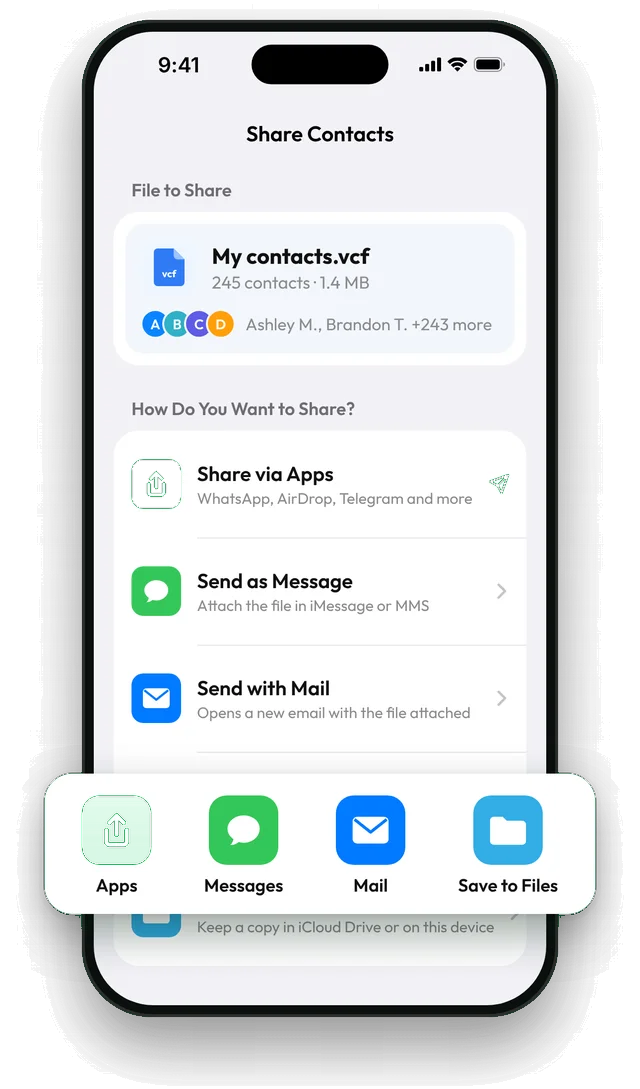
Method 4: One vCard file with AirDrop (free)
- On the old iPhone (iOS 17 or later), open Contacts, tap Lists, touch and hold All Contacts and tap Export. Or, in Contaxo, tap Back Up Now, then Share backup; backing up is free and so is your first share.
- Send the file to the new iPhone with AirDrop.
- On the new iPhone, tap the file and Add All Contacts.
If the new iPhone already had some contacts, run Duplicates in Contaxo afterwards.
Keep a copy for later
Whichever way you move, a backup file you keep yourself protects you from accidental deletions later. See How to back up iPhone contacts without iCloud.
Frequently asked questions
Where are my contacts stored if I don't use iCloud?
On the iPhone itself, or in another account such as Google, Outlook or Yahoo. Check in Settings › Apps › Contacts › Default Account. Contacts in Google or Outlook come back as soon as you add that account on the new iPhone.
Does Quick Start need iCloud?
No. Choose to transfer directly from your old iPhone, and your data, contacts included, is copied from phone to phone. Keep the two iPhones close together until it finishes.
My new iPhone is already set up. Do I have to erase it?
No. Contaxo's QR transfer and the vCard file both add contacts to an iPhone that is already in use. Only Quick Start and restoring a backup need the setup screens.
Will contact photos come along?
Yes. Quick Start, a computer backup, Contaxo's transfer and a vCard file all keep contact photos.
Related
- FeatureHow to move your contacts to a new phoneMove every contact from your old phone to a new one with a QR code: iPhone to Android, Android to iPhone or same to same. End-to-end encrypted, no accounts, no duplicates.
- FeatureHow to back up and restore your contactsBack up every contact on your iPhone, iPad or Android phone in one tap, get reminders when the backup is out of date, and restore only what is missing.
- GuideHow to back up your iPhone contacts without iCloudKeep a copy of your iPhone contacts that doesn't depend on iCloud: a vCard file in Files, Google Drive, email or on your computer. Built-in way and the Contaxo way.
- Export formatHow to export your contacts to a vCard (VCF) fileSend many contacts at once as one vCard (.vcf) file by WhatsApp, Mail, Messages, AirDrop or Quick Share. The person who gets it adds everyone in one tap.
Your contacts, in any file you need.
Free to download for iPhone, iPad, Mac and Android. No account, and we never see your contacts.