Guide · iPhone, iPad & Mac
How to back up your iPhone contacts without iCloud
Short answer
Save your contacts as a vCard (.vcf) file and keep it somewhere other than iCloud. On iOS 17 or later the Contacts app can export a list as a vCard. Contaxo does it in one tap, reminds you when the backup is out of date, can run on a schedule with Shortcuts, and restores only the contacts that are missing.

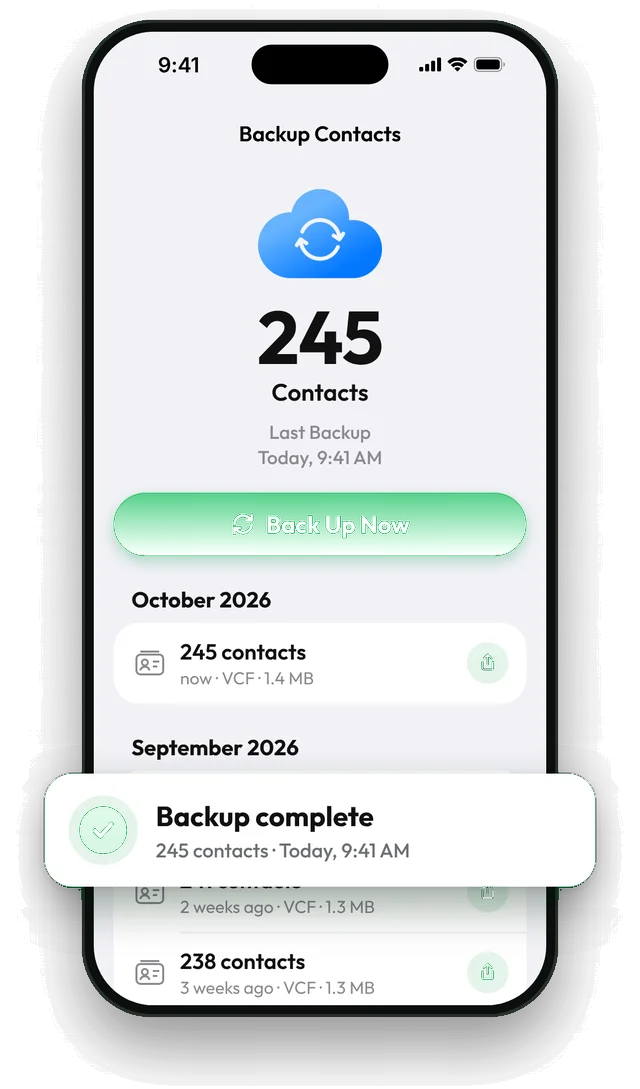
Back up without iCloud using Contaxo
Turn off iCloud for Contaxo backups (optional)
In Contaxo, open Settings › Backup Settings and turn iCloud Drive off. Backups are then kept on the iPhone instead of in iCloud Drive.
Tap Back Up Now
Tap the backup card on the Home tab, then Back Up Now. Contaxo saves every contact in one vCard file.
Keep a copy off the phone
Tap Share backup and save the file to Google Drive or OneDrive, email it to yourself, or AirDrop it to your Mac. A backup that only lives on the phone is lost with the phone. Your first share is free.
Turn on reminders or automatic backups
In Settings › Backup Settings, turn on backup reminders. To back up on a schedule, add Contaxo's Back Up Contacts action to a personal automation in the Shortcuts app.
The built-in way (iOS 17 or later)
- Open Contacts and tap Lists.
- Touch and hold All Contacts (or All iCloud / All iPhone).
- Tap Export, choose the fields to include, then save the file to Files (On My iPhone or a cloud drive) or send it by Mail.
This makes a one-off copy. There are no reminders, it doesn’t run on a schedule, and importing the file back adds every contact again, which can create duplicates.
Built-in vs Contaxo
| Feature | Contacts app export | Contaxo |
|---|---|---|
| One-tap backup of every contact | Several steps | Yes |
| Works without iCloud | Yes | Yes |
| Reminders when the backup is out of date | No | Yes |
| Scheduled backups (Shortcuts) | No | Yes |
| Restore without duplicates | No | Yes, adds only missing contacts |
| Backup history | No | Yes |
Where to keep the file
- Google Drive or OneDrive: off the phone and reachable from any device.
- Email to yourself: simple, and searchable later.
- A computer or USB drive: fully offline.
Keep at least one copy that is not on the iPhone itself.
Frequently asked questions
Why back up contacts if iCloud already syncs them?
Sync copies every change to all your devices, including deletions and mistakes. A backup file is a copy from a point in time that you can go back to, and it doesn't depend on your Apple Account or iCloud storage.
Can I back up iPhone contacts to a computer without iCloud or iTunes?
Yes. Make a vCard backup on the iPhone and send it to the computer by AirDrop, email or a cloud drive. It opens in Outlook, the Mac Contacts app, Google Contacts and most address books.
How do I restore the backup?
In Contaxo, swipe the backup in the list and tap Restore. Only missing contacts are added. You can also open the .vcf file on any iPhone and tap Add All Contacts.
Does it include photos?
Yes, by default. Turn off Include Photos in vCard in Settings › Backup Settings to make the file smaller.
Related
- FeatureHow to back up and restore your contactsBack up every contact on your iPhone, iPad or Android phone in one tap, get reminders when the backup is out of date, and restore only what is missing.
- Export formatHow to export your contacts to a vCard (VCF) fileSend many contacts at once as one vCard (.vcf) file by WhatsApp, Mail, Messages, AirDrop or Quick Share. The person who gets it adds everyone in one tap.
- FeatureHow to move your contacts to a new phoneMove every contact from your old phone to a new one with a QR code: iPhone to Android, Android to iPhone or same to same. End-to-end encrypted, no accounts, no duplicates.
- PlatformContaxo for iPhone, iPad and MacExport iPhone contacts to Excel, PDF, CSV, Word and vCard, back them up to iCloud Drive, move them to a new phone with a QR code, import from files and merge duplicates.
Your contacts, in any file you need.
Free to download for iPhone, iPad, Mac and Android. No account, and we never see your contacts.