Guide · iPhone, iPad & Mac
How to import contacts from Excel to iPhone
Short answer
The iPhone Contacts app can't read Excel or CSV files; it only imports vCards. With Contaxo, tap Import Contacts, choose the .xlsx or .csv file, check that the columns are matched and tap Save. Without an app, you need a computer: import the file into Google Contacts and sync that Google account to the iPhone.

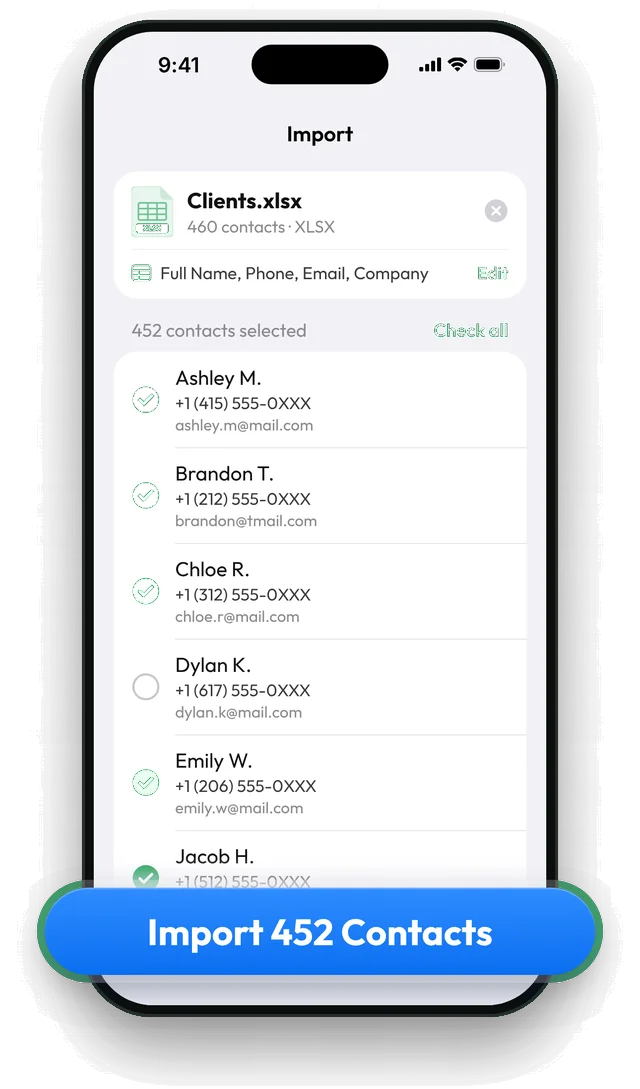
Import an Excel file on the iPhone with Contaxo
Choose the file
In Contaxo, tap Import Contacts, then Choose a file, and pick the spreadsheet. On iPad you can also drag it onto the Import screen.
Check the columns
Contaxo reads the header row and matches each column to a field such as name, phone, email or company. Tap Edit to fix a column, or turn off First row has column names if your file has no headers.
Pick the contacts
Every row becomes a contact with a tick. Untick anyone you don't want, or search by name, phone or email.
Save
Tap Save. The contacts are added to your iPhone's address book and sync with iCloud if it's on.
Without an app: through Google Contacts (needs a computer)
- Save the spreadsheet as CSV UTF-8 in Excel.
- On a computer, open contacts.google.com, click Import and choose the CSV. Google matches the columns as best it can.
- On the iPhone, add the Google account in Settings › Apps › Contacts › Contacts Accounts › Add Account › Google (older iOS: Settings › Contacts › Accounts) and turn on Contacts.
The contacts now live in your Google account and appear on the iPhone. iCloud.com can’t import a CSV; it accepts only vCard files.
Which way should I use?
| You want | Use |
|---|---|
| To do it on the iPhone, without a computer | Contaxo |
| To choose exactly who gets added | Contaxo (tick or untick each contact) |
| To keep contacts in iCloud, not Google | Contaxo (saves to your default account) |
| A free way and you use Google anyway | Google Contacts import, then sync |
Tips for a clean import
- Keep phone numbers as text in Excel so a leading 0 or + isn’t lost: format the column as Text before typing or pasting numbers.
- Put first and last name in separate columns if you can; a single “Full Name” column works too.
- Remove empty rows and summary rows such as totals at the bottom.
Frequently asked questions
How should I set up the spreadsheet?
One contact per row and a header row with clear names such as First Name, Last Name, Mobile, Email and Company. Several phone or email columns are fine. Column names from Google, Outlook and iCloud exports, and in 30 languages, are recognised.
Can I import a Numbers file?
Export it from Numbers as Excel or CSV first (File › Export To › Excel or CSV), then import that file.
Will it create duplicates?
Import adds the contacts you leave ticked. If some may already be on the iPhone, untick them, or run Duplicates afterwards.
Names with accents or non-Latin letters look wrong
The file was saved in an old encoding. Save it in Excel as .xlsx or CSV UTF-8 and import again. See How to fix broken characters in a contacts CSV.
Is it free?
Files with up to 5 contacts are free. Larger files need Pro; Contaxo tells you before you tap Save.
Related
- FeatureHow to import contacts from Excel, CSV or vCardAdd contacts to your iPhone, iPad or Android phone from an Excel, CSV or vCard file. Columns are matched for you and you choose who to add.
- GuideHow to fix broken characters in a contacts CSV fileNames with accents, Turkish, Arabic, Chinese or Cyrillic letters turn into é, ı or ??? when a contacts CSV is opened in Excel or imported. Why it happens and how to fix it.
- FeatureHow to find and merge duplicate contactsFind duplicate contacts by name, phone number or email, then delete the copies or merge them into one contact, with a restore point and undo.
- Export formatHow to export your contacts to ExcelTurn your iPhone, iPad or Android contacts into a real Excel (.xlsx) spreadsheet in a few taps, with a preview, column picker and filters. No computer needed.
Your contacts, in any file you need.
Free to download for iPhone, iPad, Mac and Android. No account, and we never see your contacts.