Guide · iPhone, iPad, Mac & Android
How to transfer contacts from Android to iPhone
Short answer
If your iPhone is already set up, the quickest way is Transfer to New Phone in Contaxo: show a QR code on the Android phone, scan it with the iPhone's camera, confirm the matching code and save. If the iPhone is brand new, Apple's Move to iOS app can copy contacts during setup. Both work without moving your contacts into a Google account.


Transfer with a QR code in Contaxo
Open Transfer to New Phone on Android
In Contaxo on the Android phone, tap Transfer to New Phone on the Home tab. A QR code appears. Keep the screen open.
Scan the code with the iPhone
Open the iPhone's Camera and point it at the code. If Contaxo isn't installed, the App Store opens and the transfer continues after you install it.
Confirm the code
Both phones show the same short code. If it matches, tap Yes, Same · Transfer on the Android phone.
Save on the iPhone
The iPhone shows which contacts are new and which are already there. Tap Save to add the new ones. Saving needs Contaxo Pro; the free vCard method is below.
Pick the right method
| Your situation | Best method |
|---|---|
| iPhone already set up | Transfer to New Phone in Contaxo (QR code) |
| New iPhone, still in setup | Apple’s Move to iOS app |
| You want to keep using Google for contacts | Your Google account, added on the iPhone |
| You don’t want to pay | A vCard file from Contaxo (method 4) |
Method 1: Transfer to New Phone in Contaxo
The steps above. It works with any iPhone at any time, sends every contact the Android phone shows (Google, Samsung, SIM or phone), is end-to-end encrypted and doesn’t add anyone twice. See Move your contacts to a new phone for details.
Method 2: Move to iOS during iPhone setup
Install Apple’s Move to iOS app from Google Play on the Android phone. On the new iPhone, follow setup until Transfer Your Apps & Data, choose From Android, and enter the code the iPhone shows in Move to iOS. Choose Contacts with anything else you want to bring.
Keep Move to iOS open on the Android phone until it finishes; switching apps or taking a call stops the transfer. Plug both phones into power for a large transfer.
Method 3: Through your Google account
If your contacts are saved in your Google account, add that account on the iPhone in Settings › Apps › Contacts › Contacts Accounts › Add Account › Google (older iOS: Settings › Contacts › Accounts) and turn on Contacts. They stay in sync with Google from then on.
Check on Android first: in Google Contacts, contacts saved only on the phone or the SIM card are not in your Google account. On Samsung phones, contacts are often saved in the Samsung account.
Method 4: One vCard file (free)
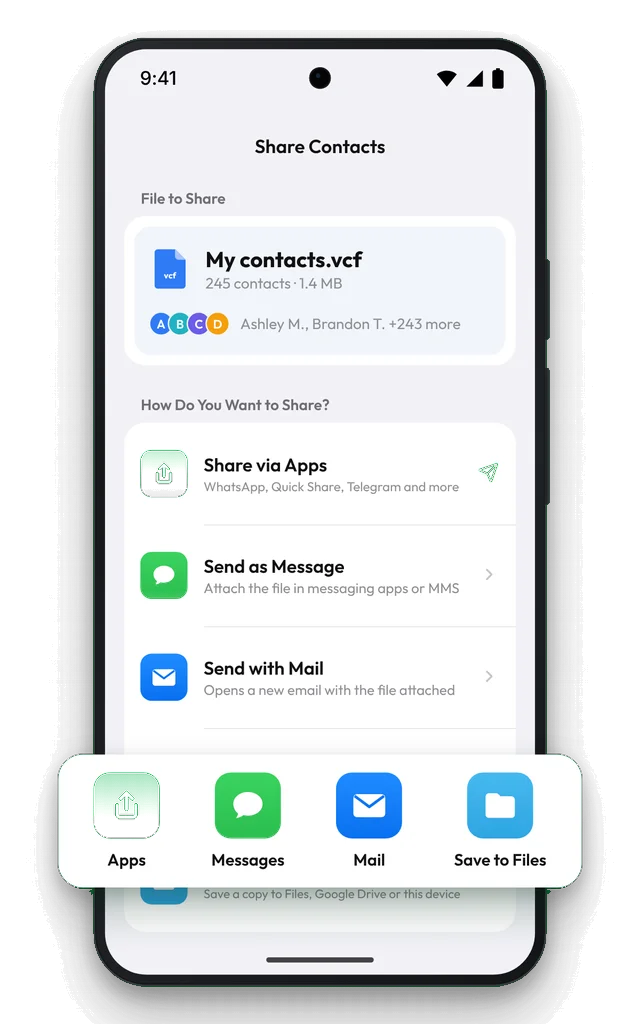
- In Contaxo on the Android phone, open Backup Contacts and tap Back Up Now. Every contact is saved in one vCard (.vcf) file, for free.
- Tap Share backup and email it to yourself, or save it to Google Drive. Your first share is free.
- On the iPhone, open the file from Mail or Files and tap Add All Contacts.
Without any app, the Contacts app on Android can also export a .vcf file: in Google Contacts, Fix & manage › Export to file; on a Samsung phone, Contacts › menu › Manage contacts › Import or export contacts › Export. This exports one account at a time, so repeat it if your contacts are spread over several accounts.
Going the other way? See How to transfer contacts from iPhone to Android.
Frequently asked questions
Can I use Move to iOS after my iPhone is set up?
No. Move to iOS runs only during the iPhone's first setup. To use it later you would have to erase the iPhone and set it up again. Contaxo's QR transfer and the vCard method work at any time, with nothing erased.
Can I transfer contacts from Android to iPhone without a Google account?
Yes. Contaxo's QR transfer, Move to iOS and the vCard file method all work without syncing your contacts to Google.
Some contacts are missing on the iPhone after I added my Google account
Adding a Google account brings over only the contacts saved in that account. Contacts saved on the phone, on the SIM card or in a Samsung account stay behind. Contaxo sends every contact the Android phone shows, whichever account it is saved in.
Will I get duplicates if the iPhone already has contacts?
Not with Contaxo's transfer: people already on the iPhone are skipped. With the vCard file, iPhone adds everyone in the file, so run Duplicates afterwards if some were already there.
Is it free?
Seeing the transferred contacts is free; saving them on the iPhone needs Contaxo Pro. Move to iOS and the vCard file method are free: backing up all contacts in Contaxo and your first share of a backup cost nothing.
Related
- FeatureHow to move your contacts to a new phoneMove every contact from your old phone to a new one with a QR code: iPhone to Android, Android to iPhone or same to same. End-to-end encrypted, no accounts, no duplicates.
- GuideHow to transfer contacts from iPhone to AndroidMove your contacts from an iPhone to an Android phone: with a QR code in Contaxo, during Android setup, with Google's Switch to Android, with your Google account or with one vCard file.
- FeatureHow to back up and restore your contactsBack up every contact on your iPhone, iPad or Android phone in one tap, get reminders when the backup is out of date, and restore only what is missing.
- FeatureHow to find and merge duplicate contactsFind duplicate contacts by name, phone number or email, then delete the copies or merge them into one contact, with a restore point and undo.
Your contacts, in any file you need.
Free to download for iPhone, iPad, Mac and Android. No account, and we never see your contacts.